Release Notes - Beta v0.10
Summary
This release introduces Multi-Company Management and Team Management capabilities, enabling users to manage multiple organizations within a single account. Users can now create unlimited companies, seamlessly switch between them, and manage team members with role-based access. All recruitment data (jobs, candidates, interviews, assessments) is automatically scoped to the active company, ensuring complete data isolation and organization.
What's New
- Multi-Company Management with unlimited company creation
- Company switcher in navbar for quick context switching
- Team Management module with role-based access control
- Company-scoped data for jobs, candidates, interviews, and assessments
- Company profile management with edit and delete capabilities
Improvements
- Enhanced settings navigation with Company Profile and Team sections
- Streamlined company creation workflow with auto-admin assignment
- Improved data isolation and security across companies
Multi-Company Management
Manage Multiple Organizations from One Account
The new multi-company management system enables users to create and manage multiple companies within a single account. This is perfect for recruitment agencies managing multiple clients, HR professionals handling multiple subsidiaries, or organizations that need separate hiring processes for different entities.
Core Features:
- Unlimited Companies: Create as many companies as needed with no restrictions
- Quick Switching: Seamlessly switch between companies from the navbar
- Complete Data Isolation: Each company has its own jobs, candidates, interviews, and assessments
- Auto-Admin Assignment: Become company admin automatically when creating a new company
- Full Profile Management: Edit company details, logo, and settings anytime
- Safe Deletion: Remove companies you no longer need
How It Works:
Creating a New Company:
1. Navigate to Settings → Company Profile
2. Click "Create New Company" button
3. Fill in company information:
- Company Name (required, max 255 characters)
- Company Size (dropdown selection)
- Industry (text input with suggestions)
- Website URL (optional)
- Company Logo (JPG, PNG, or WebP, max 2MB)
4. Click "Create Company" button
5. You're automatically assigned as the company admin
6. New company becomes your active company
7. Start adding jobs and team members
Switching Between Companies:
1. Click the company dropdown in the navbar (top-right area)
2. View list of all your companies with admin role indicator
3. Click any company name to switch context
4. All pages refresh to show data for the selected company
5. Continue working in the new company context
Managing Companies:
1. Navigate to Settings → Company Profile
2. View current company details and information
3. Click Edit to modify company name, logo, industry, size, or website
4. Click Delete to remove a company (requires confirmation)
5. Use company switcher dropdown to manage multiple companies
Key Features:
Company Information Fields:
- Company Name: Your organization's name (displayed across the platform)
- Company Size: Employee count range (1-10, 11-50, 51-200, 201-500, 501-1000, 1000+)
- Industry: Primary business sector (Technology, Healthcare, Finance, etc.)
- Website: Company website URL for reference
- Company Logo: Visual branding for your organization
Company Switcher:
- Dropdown menu in navbar showing current company
- List of all companies you have access to
- Admin role badge for companies where you're admin
- "Create New Company" quick action
- One-click switching between companies
Data Isolation:
- Jobs: Each company sees only its own job postings
- Candidates: Candidate applications scoped to company
- Interviews: Interview schedules isolated by company
- Assessments: Assessment results visible only to the company
- Team Members: Team rosters separate per company
- Settings: Company-specific configurations and preferences
Benefits:
- Multi-Client Management: Agencies can manage multiple clients separately
- Organizational Flexibility: Support multiple brands or subsidiaries
- Clean Data Separation: No mixing of recruitment data across entities
- Efficient Context Switching: Change companies in one click
- Scalable: Add companies as your business grows
- Professional Organization: Maintain distinct hiring processes per company
- Team Collaboration: Invite different teams for different companies
- Centralized Access: Manage all companies from one account
Use Cases:
- Recruitment Agencies: Manage multiple client companies separately
- Enterprise HR: Handle hiring for multiple subsidiaries or divisions
- Holding Companies: Oversee recruitment across portfolio companies
- Multi-Brand Organizations: Maintain separate hiring for each brand
- Consultancies: Manage different project teams by company
- Startups: Test different company structures before commitment
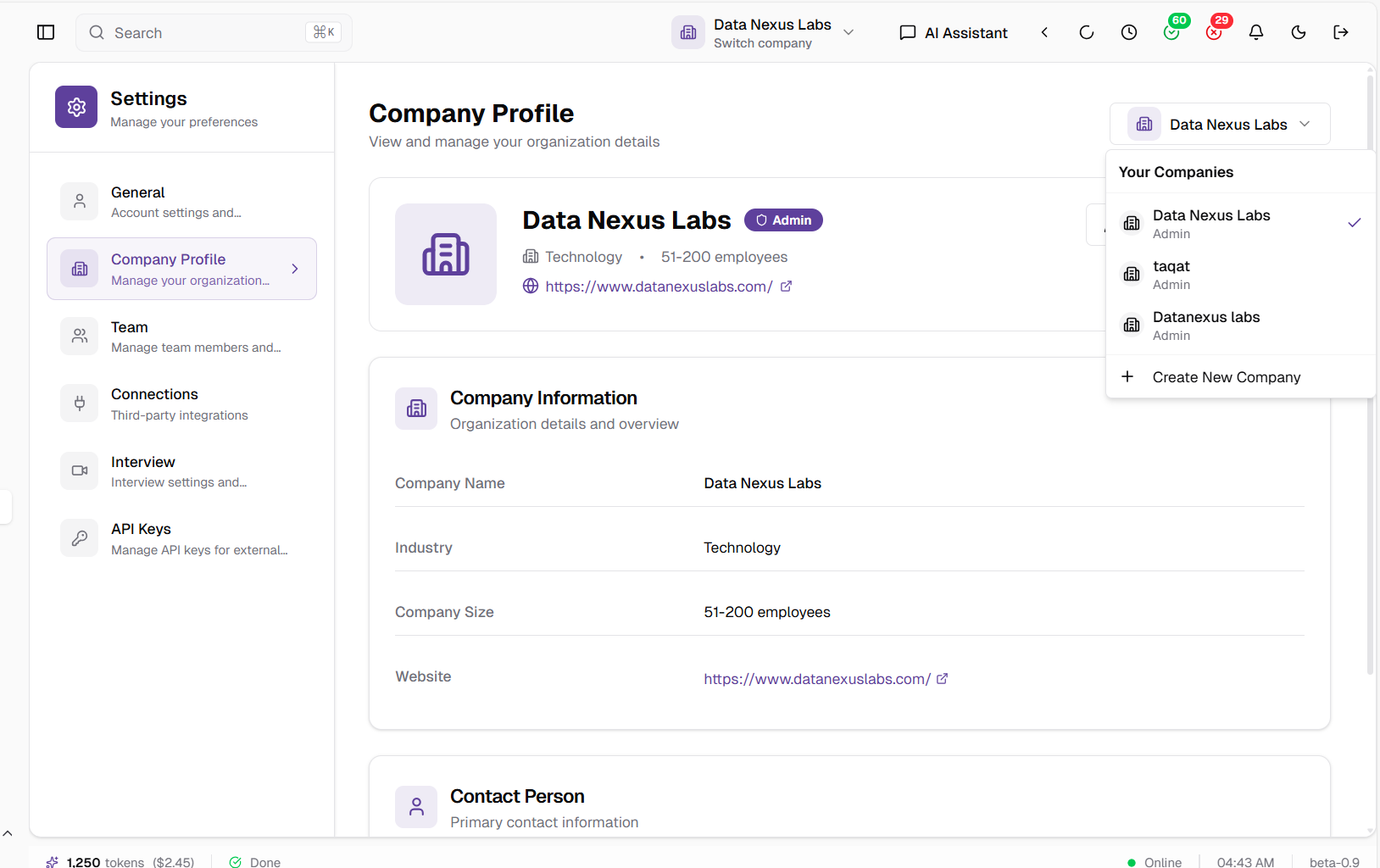
Company switcher dropdown showing multiple companies with admin indicators and quick switching
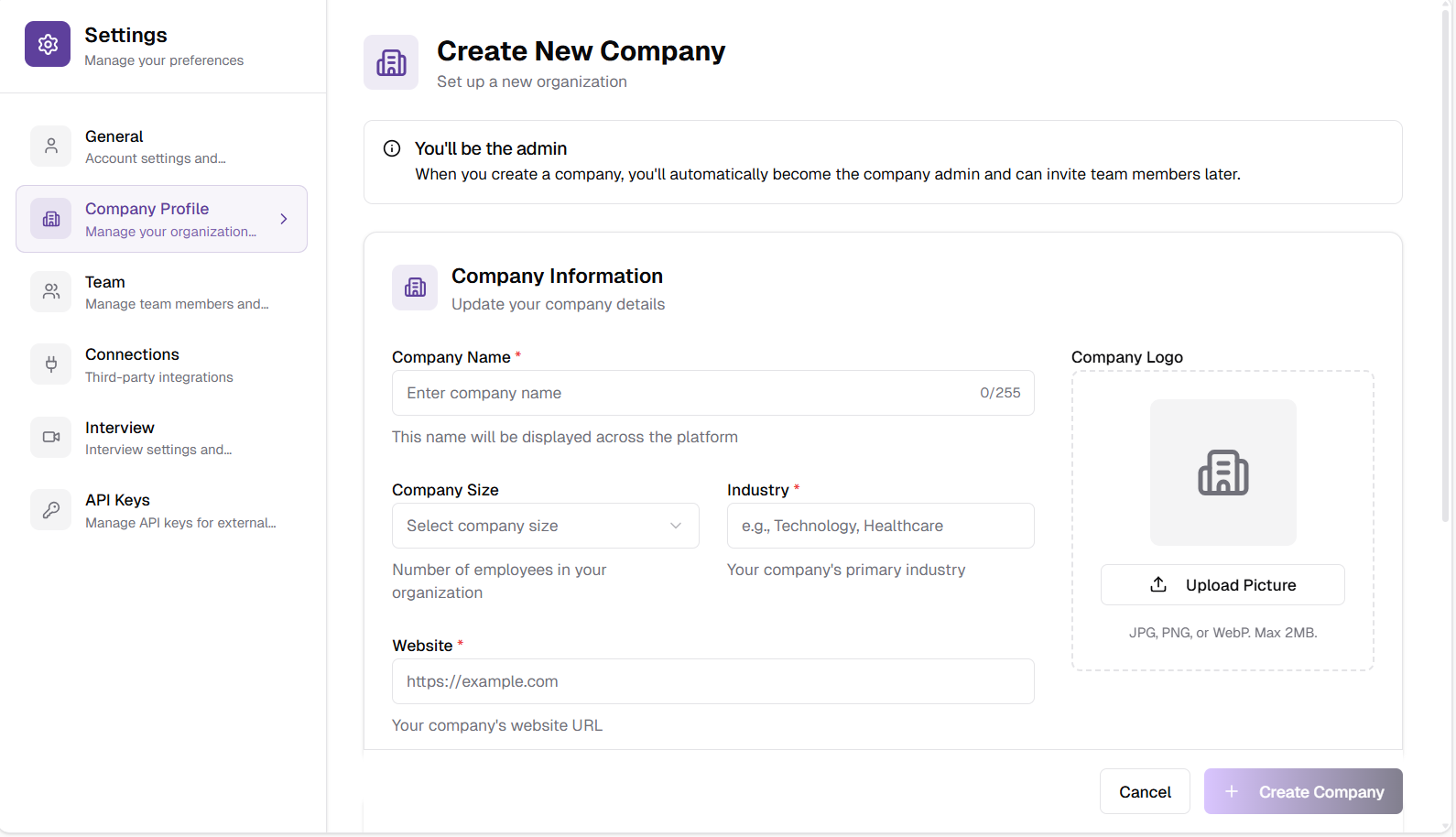
Company creation form with fields for company information, size, industry, website, and logo upload
Team Management
Manage Team Members and Roles
The Team Management module enables company admins to manage their recruitment team by viewing current team members, assigning roles, and monitoring team status. Build your recruitment team with proper role-based access control.
Core Features:
- Team Member Directory: View all team members with name, email, role, and status
- Role Assignment: Assign roles (Admin, User) to team members
- Status Tracking: Monitor team member status (Active, Pending, Inactive)
- Join Date Tracking: See when team members joined the company
- Team Actions: Edit and remove team members as needed
- Company-Scoped Teams: Each company has its own independent team roster
Team Management Interface:
Team Member List:
- Name: Team member's full name
- Email: Contact email address
- Role: Admin or User role badge with visual distinction
- Status: Active (green), Pending (yellow), or Inactive (gray) status badges
- Joined: Join date or "-" for pending invitations
- Actions: Edit and delete buttons for team management
Role Types:
1. Admin: Full access to company settings, team management, and all features
- Can invite team members
- Can edit company profile
- Can manage jobs, candidates, interviews
- Can delete company
- Full administrative privileges
2. User: Standard access to recruitment features
- Can view and manage jobs
- Can review candidates
- Can conduct interviews
- Can view assessments
- Limited settings access
How It Works:
Viewing Your Team:
1. Navigate to Settings → Team
2. View complete list of team members
3. See roles, status, and join dates at a glance
4. Identify admins with purple role badges
5. Monitor pending invitations
Managing Team Members:
1. Access Settings → Team
2. Locate the team member in the list
3. Click Actions → Edit to modify role or details
4. Click Actions → Delete to remove team member (requires confirmation)
5. Changes apply immediately
Key Features:
Visual Status Indicators:
- Active (Green): Team member has accepted invitation and is using the platform
- Pending (Yellow): Invitation sent, awaiting acceptance
- Inactive (Gray): Team member account deactivated or suspended
Team Organization:
- Search and Filter: Find team members quickly (coming soon)
- Sort Options: Order by name, role, join date, or status (coming soon)
- Bulk Actions: Manage multiple team members at once (coming soon)
Benefits:
- Clear Team Visibility: Know exactly who's on your recruitment team
- Role-Based Security: Control access with admin and user roles
- Team Accountability: Track who joined when and their current status
- Easy Team Management: Add, edit, or remove team members easily
- Company Isolation: Teams are completely separate per company
- Status Monitoring: Identify pending invitations and inactive members
- Collaboration Ready: Build recruitment teams of any size
Use Cases:
- Recruitment Teams: Coordinate hiring across multiple recruiters
- HR Departments: Manage HR team access to recruitment platform
- Hiring Managers: Give hiring managers user access to review candidates
- Multi-Office Teams: Organize teams across different office locations
- Agency Collaboration: Coordinate with external recruitment partners
- Temporary Access: Grant temporary user access for contract recruiters
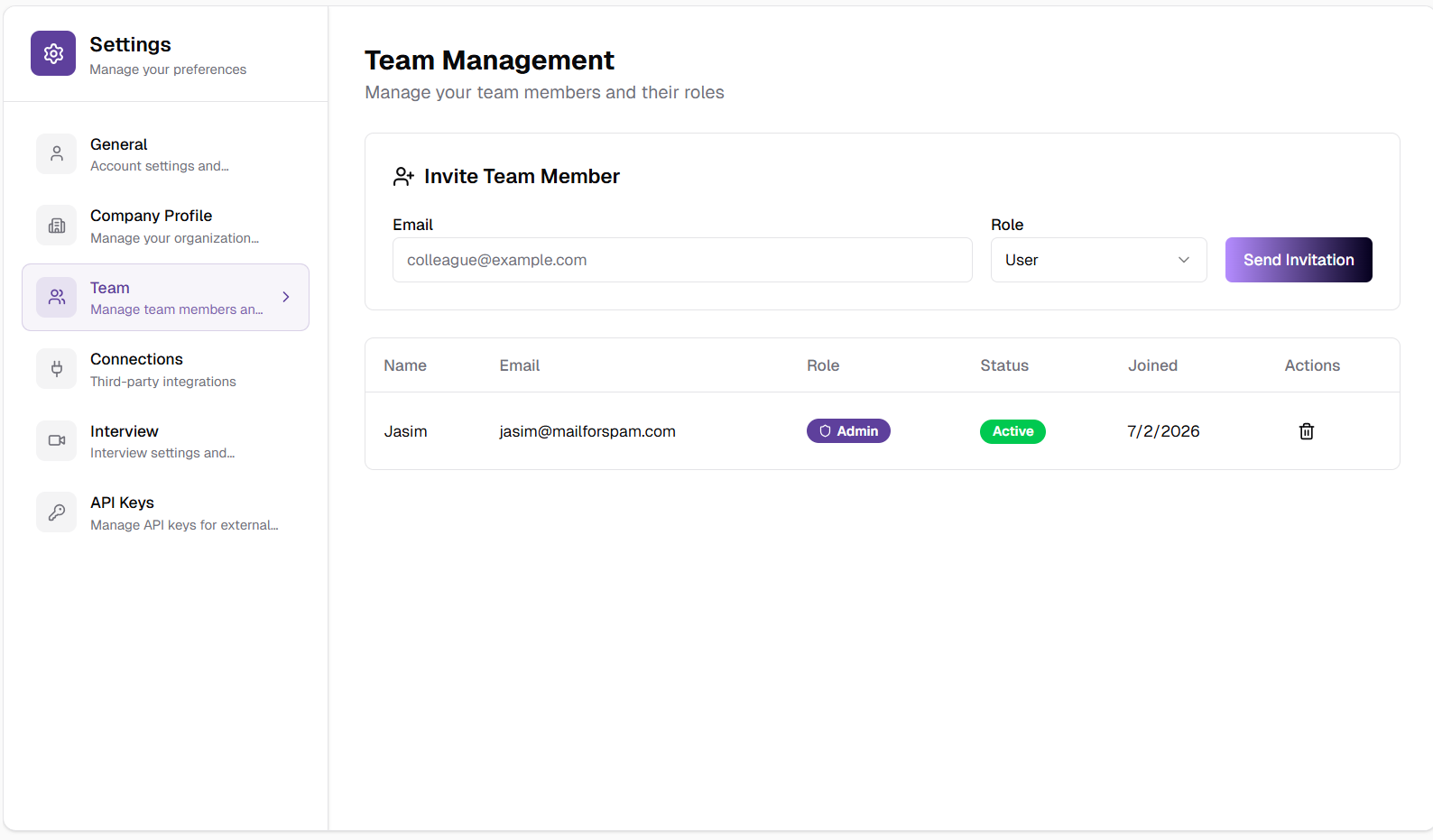
Team management interface showing team member list with roles, status, join dates, and action buttons
Released on February 10, 2026
View all releases